

Every day, photographers jump into PhotoBiz with the same goal: build a beautiful, powerful website and run their business online without needing a full-time tech team.
But even if you’ve been with us a while, there are always those “Wait… where is that again?” moments.
In a recent PhotoBiz Live session, we hosted an Ask Me Anything all about frequently asked questions—from beginner setup to more advanced studio tools and PhotoBiz AI. This post recaps the big topics we covered so you can follow along step-by-step.
1. How do I change my template in PhotoBiz?
You don’t have to start from scratch if you want a fresh look.
-
Go to your Website Builder.
-
Click Design in the top menu, then Edit Design Settings.
-
Click Change Template.
Here you’ll see:
- Which template is live
- Any templates you’ve already experimented with
- The option to add a new template
When you add a new template, you’ll be asked:
- Keep current settings (keep your existing colors, fonts, etc.)
- Use new template settings (override your design)
If you choose to override, PhotoBiz will update things like:
- Colors
- Fonts
- Stylings
- Site background
- Footer styles
- Any template-specific CSS
You can preview how the new template looks, then save when you’re happy. It’s a fast way to give your site a total glow-up.
2. Can I accept payments? What merchant options does PhotoBiz support?
Yes! PhotoBiz works with several merchants so you can get paid online.
Go to:
-
E-commerce
-
Click Payments in the top menu
-
Choose Merchants
You can set up:
- Offline payments (cash/check in person)
- Online merchants like:
- PayPal
- Stripe
- Square
- Authorize.net
- PayJunction
- Payflow Pro
- iTransact
PhotoBiz doesn’t hold your money—we act as the secure middleman between your website and the merchant you choose. Payments go directly into your merchant account.
Most popular options:
- Stripe & Square – Click to connect, log in to your account, and you’re done.
- PayPal – Often as simple as adding your PayPal email.
3. How do I create a new user and set permissions?
If you work with a partner, studio manager, assistant, or admin, you don’t have to share your main login.
To add users:
-
Go to My Account
-
Click Users
-
Click Create New User
You’ll enter:
- Their name
- Email address
- Choose how they log in (email or phone for two-factor authentication)
Then you set permissions:
- Choose which parts of PhotoBiz they can access (e.g. Blog, Scheduler, Invoices, etc.)
- Decide whether they can access financial areas like e-commerce
- Turn purchases on/off for that user
Once created, that user will only see the tools you’ve allowed. You can also see things like:
- When they last logged in
- What they have access to
It’s a great way to protect your business while still letting team members help.
4. How do I set up my Business Profile for PhotoBiz AI?
If you’re using PhotoBiz AI (and you absolutely should), this is a must-do.
-
Go to Branding in the left menu.
-
Scroll to Business Profile.
Fill in:
- Business name
- Location (city, state, or area you serve)
- Specialties & services (e.g., senior photography, weddings, families, branding, etc.)
- Style & approach (how you shoot, what makes you unique)
- Brand voice (fun & playful, polished & professional, friendly & casual, artistic & expressive, calm & elegant, etc.)
- Additional business info (contact details, etc.)
Once this is set, PhotoBiz AI:
- Knows who you are
- Knows where you are
- Knows what you shoot
- Knows how you sound
So when you click Ask PhotoBiz AI in the builder, it can write in your voice, for your audience, in your location.
5. How can I optimize my website for SEO with PhotoBiz AI?
Every page in the Website Builder has SEO tools built in.
On any page:
-
Click the SEO tab in the side panel.
-
Choose whether to:
-
Use your Business Profile, or
-
Add custom instructions for that page
-
-
Click Ask PhotoBiz AI to generate:
-
Meta title
-
Meta description
-
Meta keywords
-
PhotoBiz AI will look at:
- The page name
- Page content
- Your business profile
Then it creates SEO that’s relevant to that page (e.g. “Holiday Sessions”, “About Me”, “Senior Gallery”, etc.). You can always tweak the results before saving.
You can also use this same flow for:
- Blog posts
- Special landing pages
- Booking & session pages
6. Can PhotoBiz AI help with image alt text?
Yes, and this is a huge time saver.
Alt text helps with:
- Accessibility (screen readers for visually impaired visitors)
- SEO (search engines understand what’s in your images)
To add alt text with AI:
-
Click on an image in your builder.
-
Click Ask PhotoBiz AI.
PhotoBiz AI will generate descriptive alt text automatically, like:
“Groom’s boutonnière being adjusted on his suit jacket.”
“Person adjusting a white ribbon in a woman’s hair, showcasing an elegant updo.”
You can do this across your site so your images are both accessible and search-friendly without writing every description by hand.
7. How do I set up invoices, quotes, and studio management tools?
Quotes & Invoices let you send proposals, get approvals, and track payments—perfect for big sessions, weddings, and custom jobs.
Go to Quotes & Invoices:
Create a quote
-
Click New Quote
-
Add items such as:
-
Products (prints, albums, wall art)
-
Packages
-
Custom items (e.g. “On-site session 8 hours”, “Makeup & wardrobe artist”, etc.)
-
-
Set:
-
Prices
-
Quantity
-
Taxable/not taxable
-
Shipping if needed
-
-
Add terms & policies (deadlines, retainers, cancellation, etc.)
-
Add a thank-you message if you’d like.
-
Send it to a client from your CRM or add a new contact.
Your client gets an email, opens the quote, and can approve or decline it. Approval includes a digital signature.
Convert a quote to an invoice
Once approved:
-
Open the quote and go to Status.
-
Set:
-
Invoice due date
-
Partial payments allowed or not
-
-
Click Create Invoice and send.
You can then:
- Track partial payments
- Record offline payments (e.g. “$500 – in-person check”)
- See the remaining balance
- Monitor everything from your Quotes & Invoices dashboard over time
8. Are my websites mobile responsive and optimized?
Yes. With PhotoBiz, you design once, and your site automatically adapts to:
- Desktop
- Tablet
- Mobile
In the Website Builder, you can click device icons to preview each version.
What about banners and cropping?
Sometimes banners are very wide—so the mobile view may crop differently. You have options:
- Adjust focal point of the image
- Use “no crop” for a full image view (changes desktop behavior)
- Or upload a separate mobile image:
- Edit the banner block
- Choose a Mobile Image
- Use a more vertical photo just for phones
That way your desktop visitors see one version, and your mobile visitors see a perfectly framed version tailored to small screens.
9. How do I change languages or translate my website labels?
If you want key system words (like “Cart”) to appear in another language or just use different wording:
- Go to E-commerce > Settings for things like currency.
- Go to your profile / language settings area to modify account language options.
From there, you can:
- Change pre-programmed labels to:
- Spanish
- French
- Italian
- Or customize text to say something else (e.g. change “Cart” to “Bag”).
If you want fully translated content, you’ll still write your pages in that language—but system labels (like cart, checkout, etc.) can be adapted here.
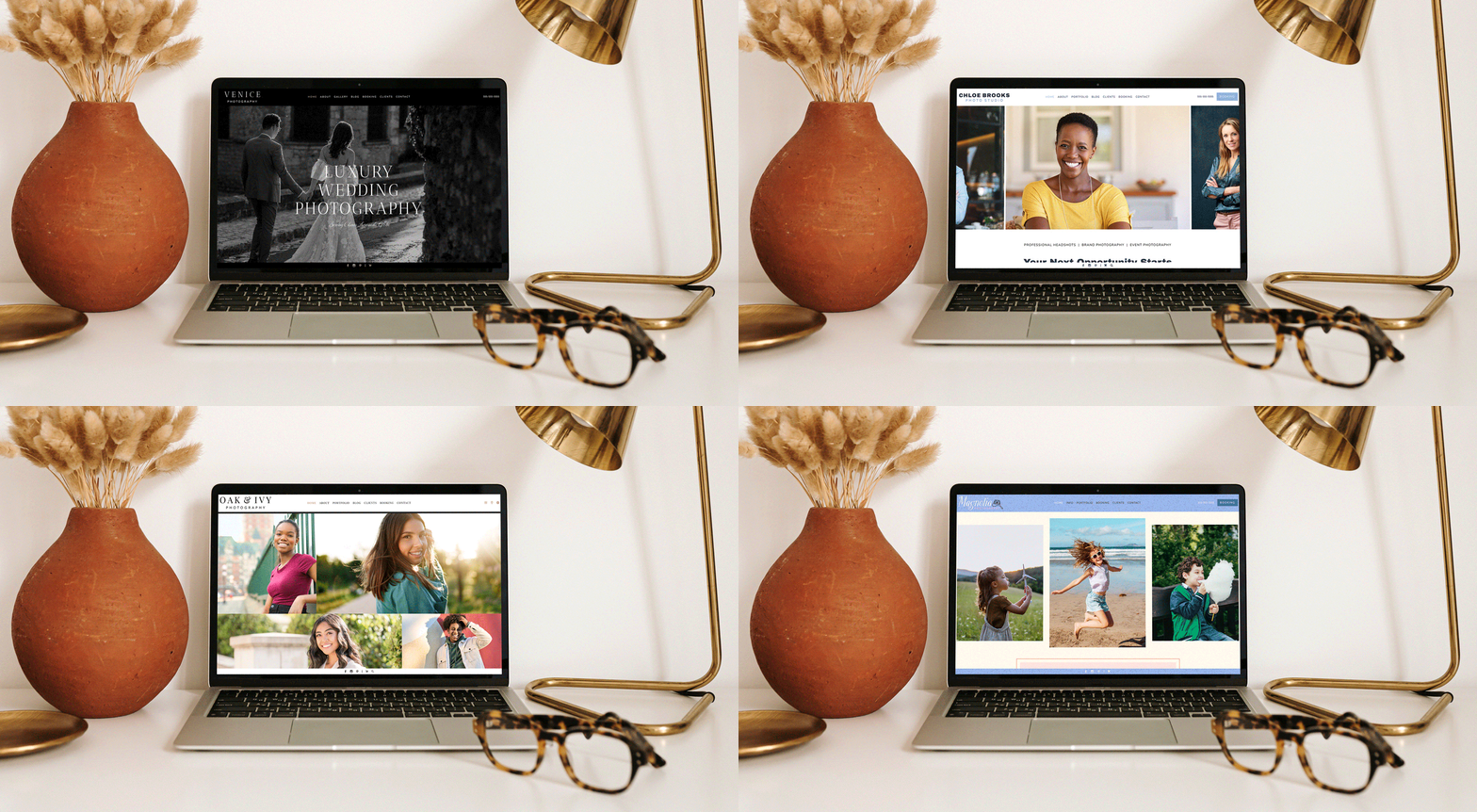
10. How do I change my fonts and overall branding?
Global branding happens in one main place:
-
Go to Website Builder
-
Click Design
-
Click Edit Design Settings
Here you can update:
- Site colors (primary, accent, backgrounds)
- Fonts (for menu, titles, body text, buttons)
- Spacing between blocks
- Graphics and footer styles
- Blog & product detail styles
- Animations (how blocks appear: fade in, slide up, etc.)
- Button hover effects (fill, overlay, etc.)
These are global settings—change it once and it updates across your site.
Want a different style on just one block?
You can override global styles by block:
-
Click a block in your builder.
-
Click Styling.
Then you can:
- Turn on card styles
- Adjust backgrounds & overlays
- Set custom colors for that block
- Change title fonts & sizes
- Adjust spacing
- Change button styles & colors
- Modify animations for that block only
This gives you a cohesive brand with the flexibility to highlight special sections.
11. How do I change a block’s layout?
Every block in PhotoBiz has multiple layout variations.
To change:
-
Click on the block
-
Click Layout
From there you can:
- Jump to different layout families (e.g. Collage 4, Collage 6, overlays, etc.)
- Use the arrow icons to cycle through layouts quickly until you find one you love
- Rearrange where images show and how they crop
- Switch spacer styles, shapes, or image + text arrangements
You can do this on any block—hero banners, image grids, testimonials, blog blocks, and more. It’s one of the fastest ways to completely refresh a page without rebuilding anything.
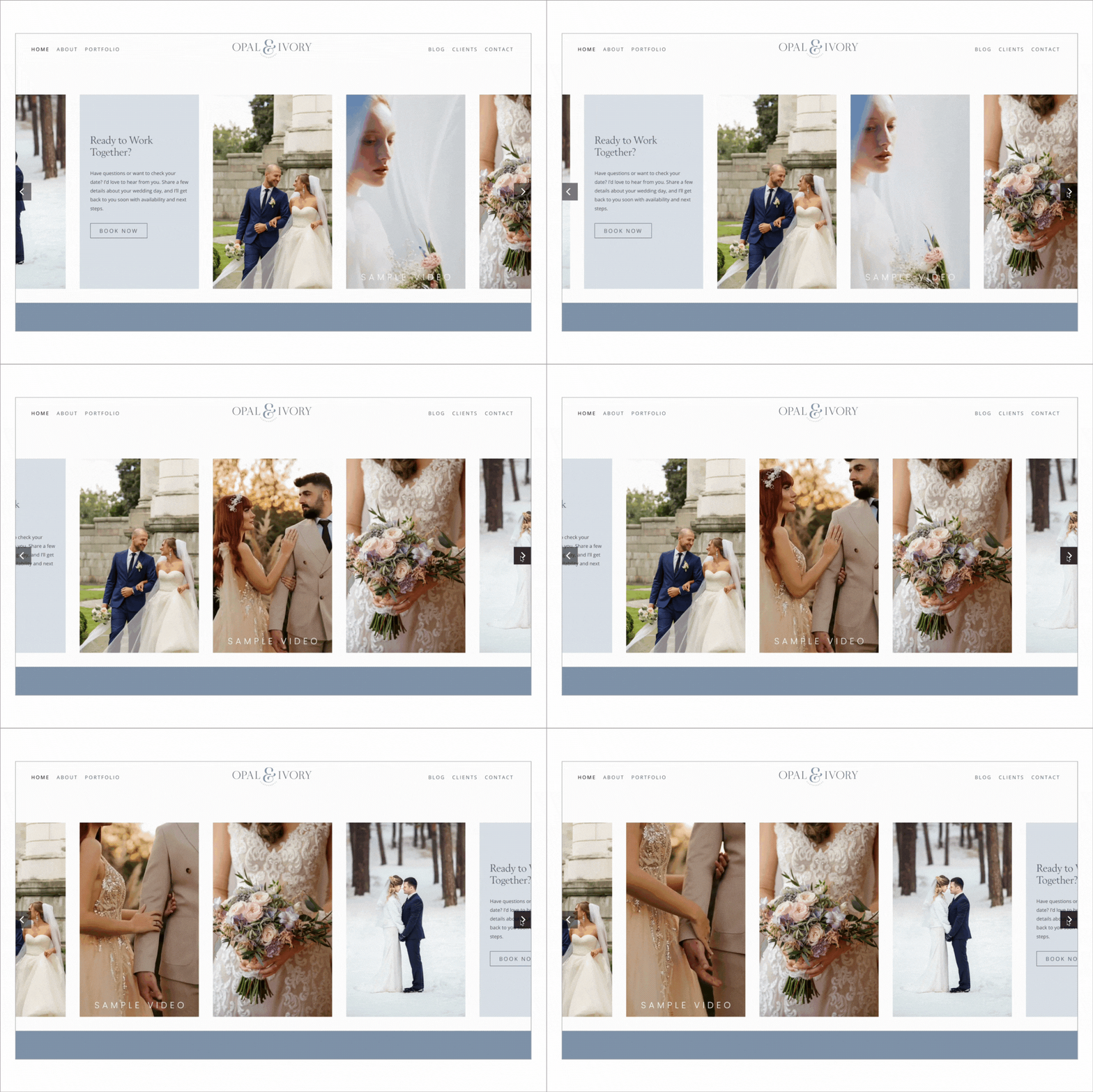
Story Panel Landscape List Block Layout
12. How do I track visitor stats and add Google Analytics?
You can add tracking codes to your site globally, per page, or even on specific forms and campaigns.
Global tracking
-
In the Website Builder, click Tracking in the top menu.
-
Paste your Google Analytics, AdWords, Facebook Pixel, or other tracking code into the Header code section.
This will apply across your website.
Per-page tracking
-
Go to the page in the Website Builder.
-
Click SEO.
-
Click Tracking.
-
Paste code into the header for that page only.
Forms & Marketing campaigns
-
For Forms:
-
Open the form
-
Click the settings/tracking icon
-
Add your tracking code there
-
-
For Marketing campaigns:
-
Open the campaign
-
Use the Tracking section to add any codes you need
-
This gives you visibility into how people are finding you and what they do once they land on your site.
13. How can I create blog content easily with PhotoBiz AI?
Blogging is one of the best ways to boost SEO and serve your clients—and PhotoBiz AI makes it way easier.
Create a new blog post
-
Go to Blog.
-
Click New Post.
-
Give your post a title (e.g. “What to Wear for Your Winter Family Session”).
Then in the content area you have two options:
-
Start typing, then use Ask PhotoBiz AI to:
-
Polish your wording
-
Rewrite for clarity or tone
-
-
Or start with a prompt, like:
“Write an evergreen blog post about winter photos and what to wear.”
Because your Business Profile is already set up, PhotoBiz AI can:
- Mention your name & studio
- Reference your location
- Write in your brand voice
You can then:
- Edit the text
- Add images from your galleries
- Click into SEO for the post and let PhotoBiz AI write meta title/description/keywords
- Set or override the post’s cover image
Displaying your blog on your website
In the Website Builder:
-
Add a Blog block to any page.
-
Choose:
-
All posts
-
Posts with certain tags (e.g. “Families”, “Weddings”, “Education”)
-
Or Most recent posts
-
-
Decide how many posts to show and whether to show the publish date.
By default, the first image in a blog post becomes its thumbnail, but you can set a specific cover image in the blog’s Settings.
Final thoughts: Start with your Business Profile
If you do one thing after reading this, make it this:
👉 Set up (or update) your PhotoBiz AI Business Profile.
Once that’s dialed in, every time you click Ask PhotoBiz AI—for:
- Page copy
- Blog posts
- SEO
- Alt text
—you’re getting content tailored to your business, your voice, and your clients.
And remember, you’re never on your own:
- Check out our blog for new feature announcements, tips, and ideas.
- Visit education.photobiz.com for upcoming live events and trainings.
- Reach out via live chat or phone if you get stuck—our team is standing by to help.
Got more questions you’d like us to cover next time? Send them our way—we’re always happy to turn your questions into new education and tools that make your business easier to run.




Leave a comment
0 Comments